
Downloading the Yapp app to your mobile device is useful, since …
- Yapp is the only way for you to see the full schedule of events at the Congress.
- Yapp will provide you with important notifications and daily bulletins.
- Yapp allows you to share your photos and experiences with your fellow Go enthusiasts.
- Yapp gives you the opportunity to improve future Congresses by rating/commenting on events.
The bullets below give two simple options for downloading the Yapp app to your mobile device:
- Visit https://my.yapp.us/GOCONGRESS26
- Or scan the following QR code

A brief introduction to the Yapp app is given below.
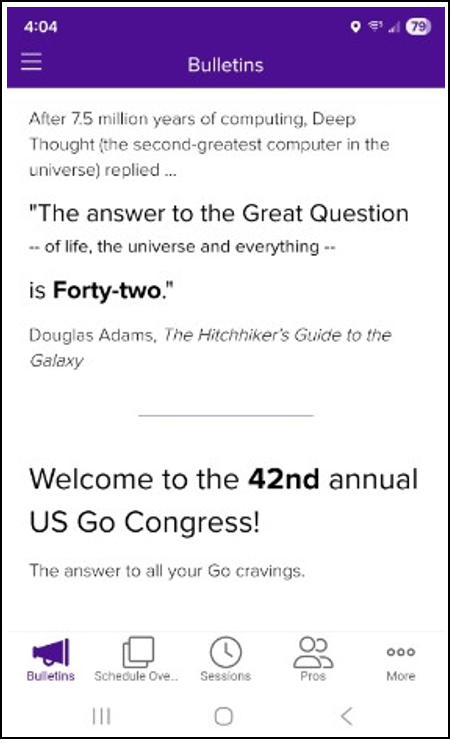
After downloading, you can access the app by tapping the “No. 42” icon in Yapp. After a few seconds, this will take you to the “Bulletins” page (see example image below). A menu of different app “pages” can be seen at the bottom of the screen. Tapping on a page icon will take you to that page. Tapping on the “More” icon will list additional app pages. A summary of what’s on each app page is given below.
APP PAGES
Bulletins: Provides daily announcements.
Overview: Provides a summary of schedules for tournaments, pro activities, youth activities, as well as meetings and special events.
Sessions: Provides detailed schedule information on all events. When you have an individual event displayed in Yapp, the bottom of the screen let’s you rate and then comment on the event.
Pros: Provides a photo and biography for each sponsored pro, along with a list of the events that they are leading.
Leaders: Provides information on AGA/AGF leaders, Congress co-directors, and tournament directors. Photos and biographies are provided if available.
Social Sharing: App users can submit posts to share with everyone. Posts can contain photos and text. Each post can be liked or commented on by anyone. Attendees will receive push notifications for new posts or interactions with their posts, although a user can control their notification settings. To submit a post, tap on the ‘Social Sharing” page icon, then tap the pencil icon in the upper-right corner of the screen, and then start typing. You can use the camera icon at the bottom-left of the screen to snap a photo to include in your post.
Sponsors (page coming soon): Please check out our sponsors. They offer amazing services and merchandise.
Contact Us: Provides our contact information. Feel free to contact us with any questions, concerns, or suggestions on how to improve the Congress.
MY SCHEDULE
The Yapp app has a “My Schedule” tool that allows a user to collect and view a set of events of interest to them. It’s easy to use. If any changes are subsequently made to an item on your list (e.g., time, date, location, etc.), the changes will be automatically be reflected in your “My Schedule”.
To add an event to your “My Schedule”, navigate to a “Sessions” event of interest, and tap on the “Add To My Schedule” button near the bottom of the screen. Repeat to add other items.
To view your “My Schedule”, go to the app’s “Sessions” page and tap the calendar-like icon in the upper-right of the screen.
To remove an event from your “My Schedule” view, tap on the event, and then tap on the “Remove From My Schedule” button near the bottom of the screen.